
TL;DR
This guide uses the S1 management console, S1 PowerQuery, and Microsoft Excel to produce a list of endpoints that are not sending event logs to event search, enabling the resolution of logging issues before they are needed for an investigation.
Tools
- S1 Console – administration console for managing SentinelOne agents.
- S1 PowerQuery – provides a rich set of commands for summarizing, transforming, and manipulating data within the SentinelOne Platform.
- Microsoft Excel – the obvious choice when one wants to code their own Pacman game.
Introduction
SentinelOne Endpoint Protection may have endpoints connected to the management console, but not sending logs to event search.
This guide provides a way to identify those endpoints and produces a list that can be used to correct the issue before the logs are needed for an investigation.
If there are whole groups of endpoints not sending events, double-check that the agent policy assigned to that group is configured to send event logs to the S1 platform.
Process
- Export csv list of active endpoints from the S1 platform.
- Export csv list of endpoints that sent a log to event search.
- Use Excel to identify problematic agents.
Method
1. Export Active Endpoints
- Navigate to Inventory and select the highest scope accessible (Global, Account, Site, etc.).
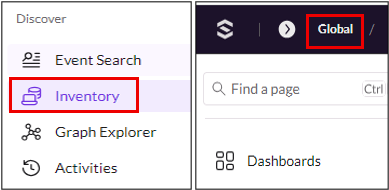
- Select the Endpoint tab on the Inventory screen, clear any existing filters, then apply the filters below:
- “Agent Operational State: Not Disabled” (Because agents in a disabled state won’t be sending logs.)
- Set the date selector for last active time to “Last 14 days”.

- Export to a csv.
- Click Export > Export Table
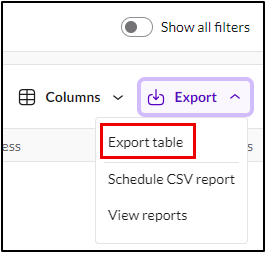
- In the Columns drop-down, clear the existing selections, then select “Asset Name” and “Agent UUID”.
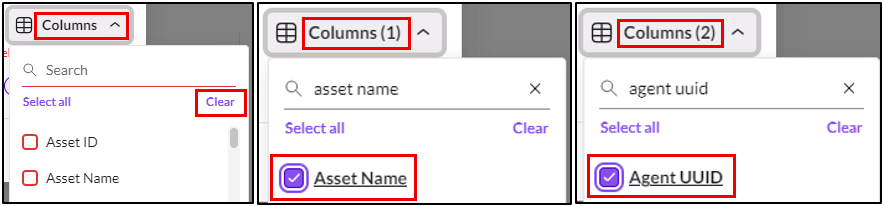
- Once the columns are selected, download as csv.
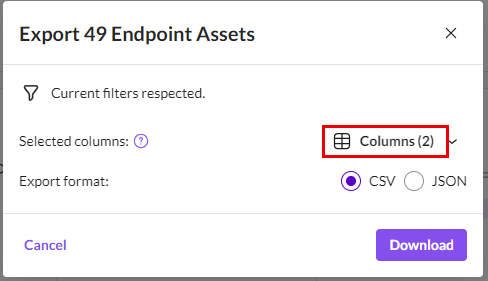
- The export filename usually resembles “exported_inventory-[date/time].csv”.
- Click Export > Export Table
2. Export Endpoints with Event Logs
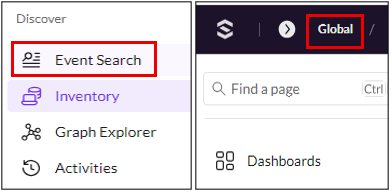
- Navigate to Event Search; ensure the scope hasn’t changed.
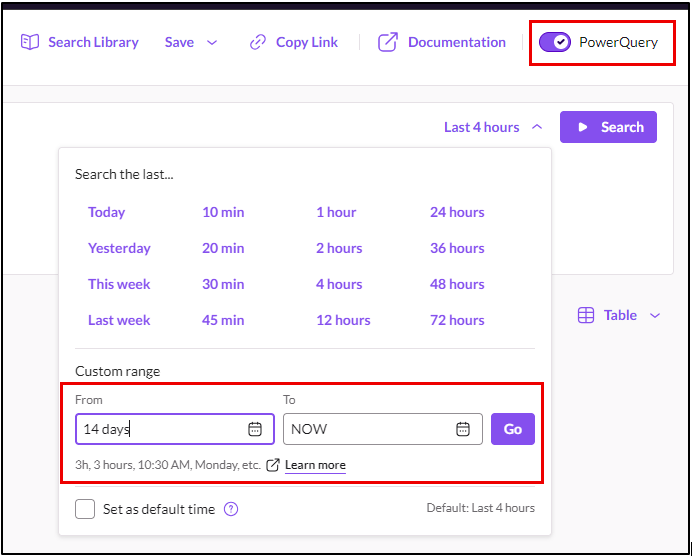
- Enable PowerQuery and set the time filter for “Last 14 days”. (Note that leaving the Event Search page may disable PowerQuery and clear the EDR query window).
- In the EDR query window: enter the following query, then click search.
|group count() by endpoint.name, agent.uuid
|columns endpoint.name, agent.uuid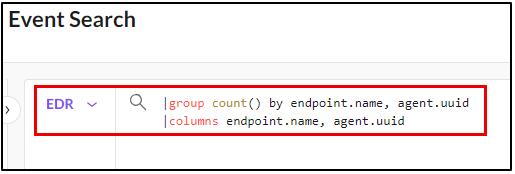
- Results will be displayed below the query window, in table format.
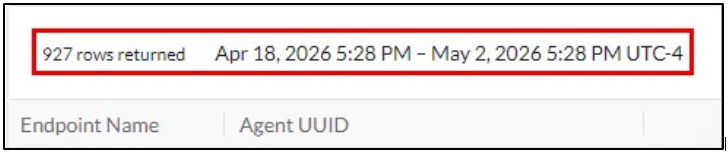
- Download the table results as csv.
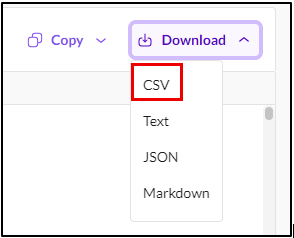
- The download filename usually resembles “power-query-results_[date/time].csv”.
3. Analyze Data with Excel
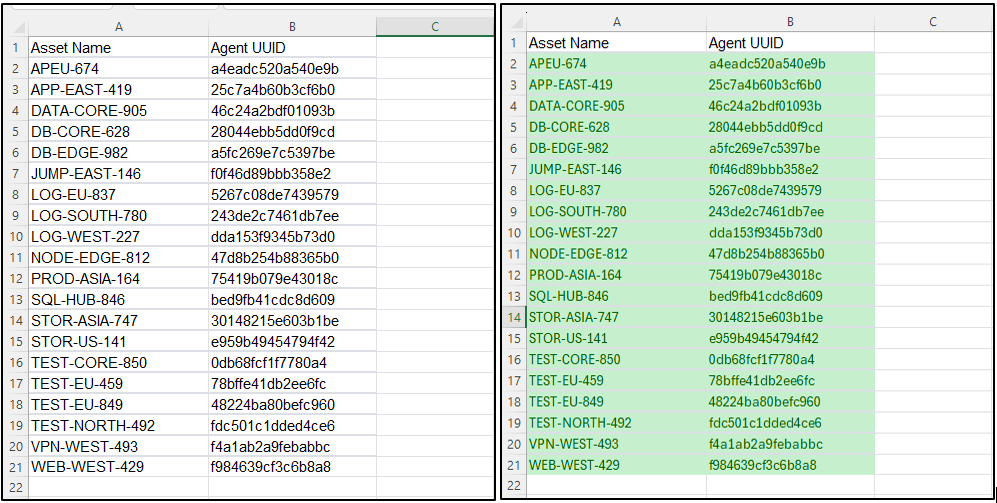
- Open the Inventory export “exported_inventory-[date/time].csv”. and color the data cells green.
- Open the event search download “power-query-results_[date/time].csv”.
- Select and copy the Asset Name and Agent UUID data cells;
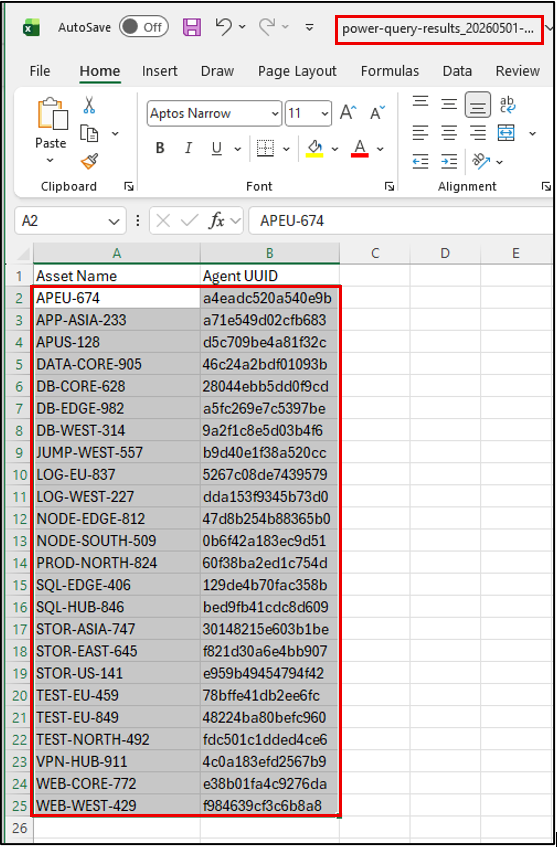
- Go back to the Inventory csv;
- Paste the Event Search data cells under the green Inventory data cells;
- Color the Event Search data cells yellow while they are still highlighted.
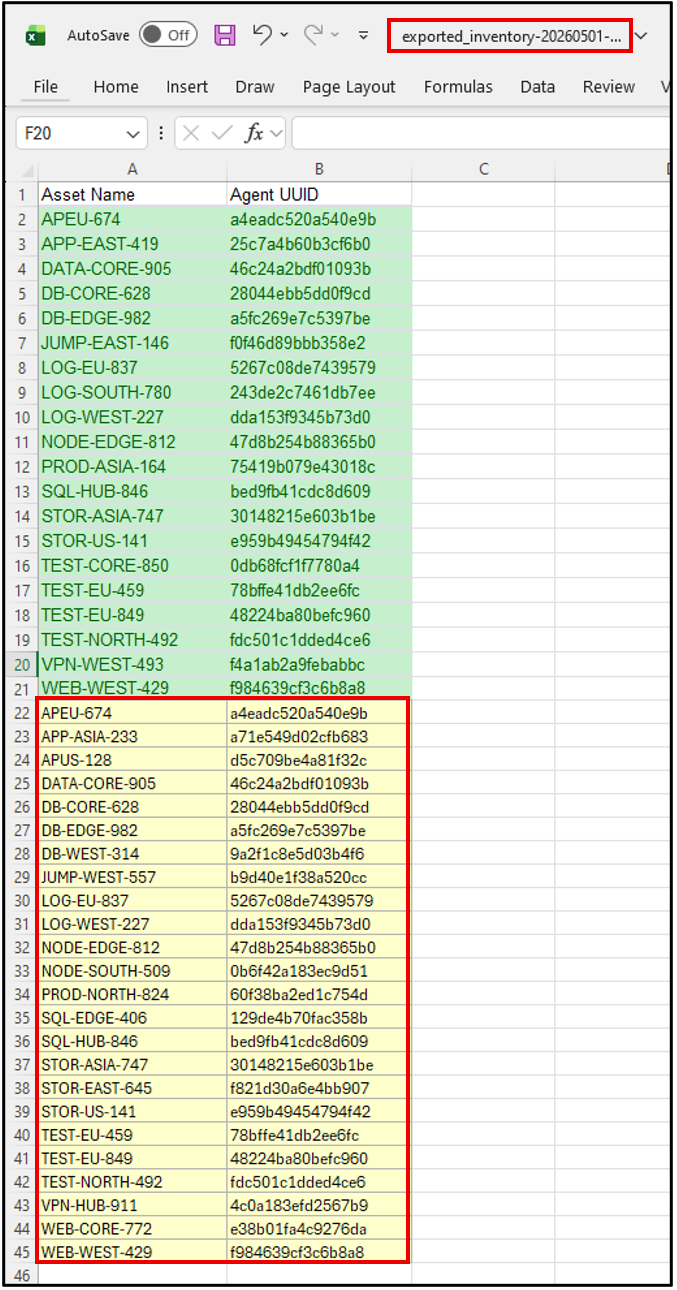
- Select and copy the Asset Name and Agent UUID data cells;
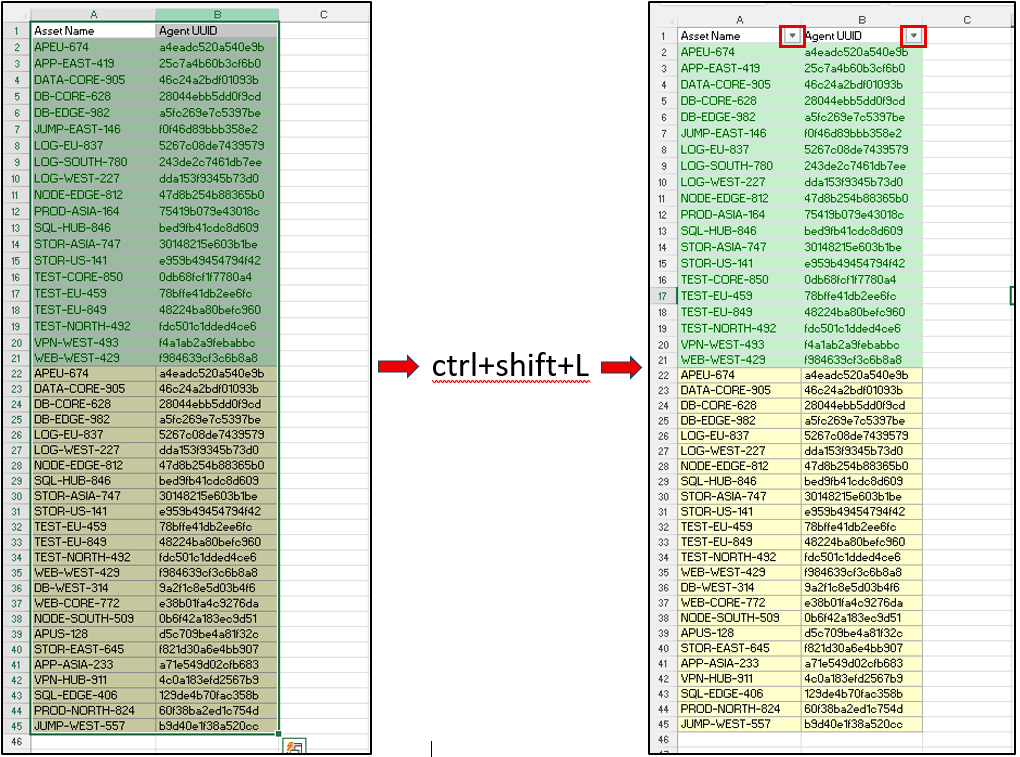
- Select all the populated cells, including the column headers A1 and B1, then press “ctrl+shift+L” to enable filtering for the columns.
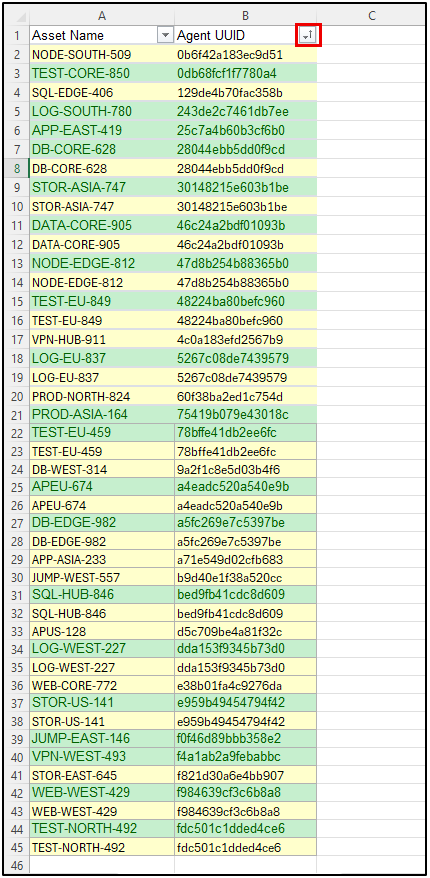
- Sort the Agent UUID column by A to Z.
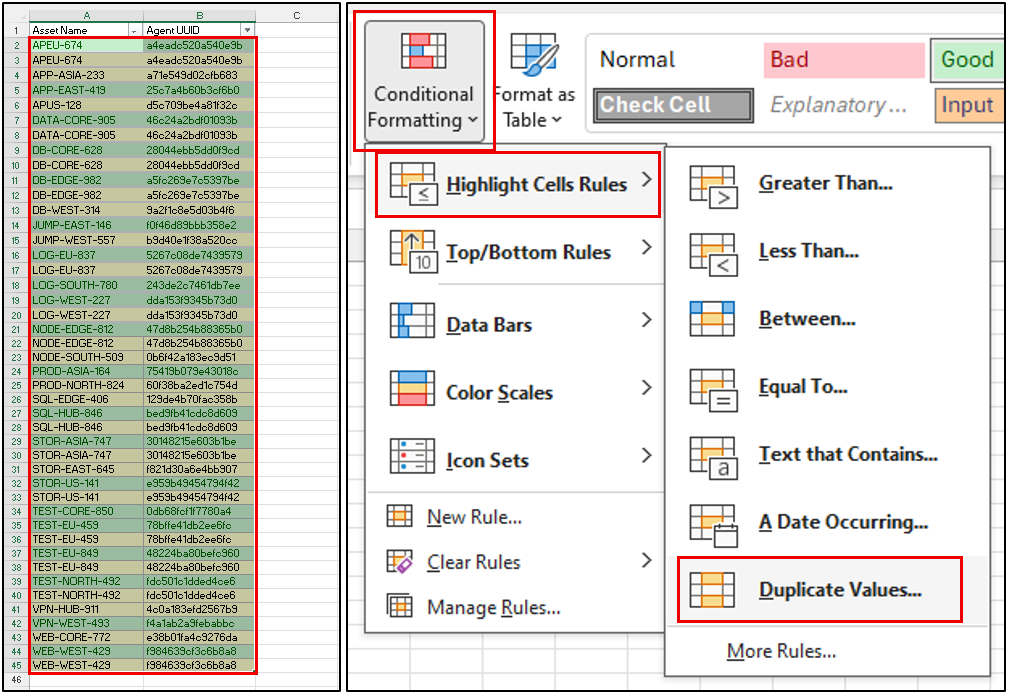
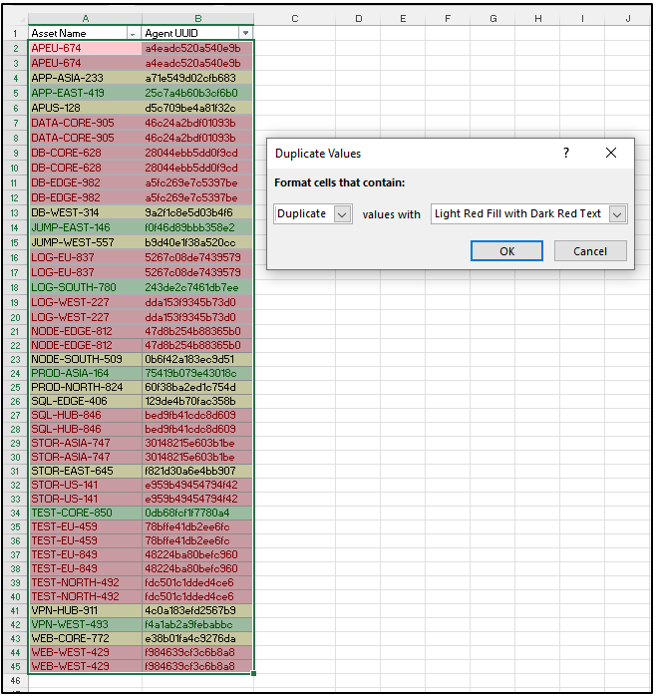
- Select all the populated data cells (not column headers), and use Conditional Formatting (located on the Excel ‘Home’ tab) to Highlight duplicates red.
- Filter (not Sort) Agent UUID by the cell color green.
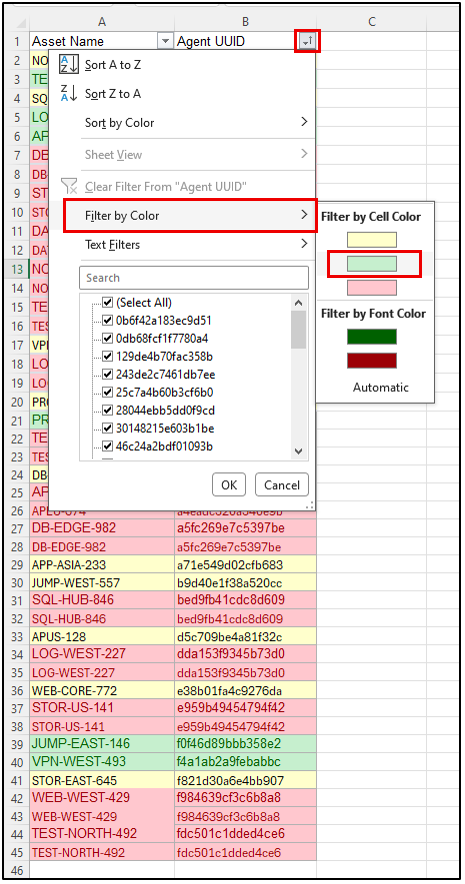
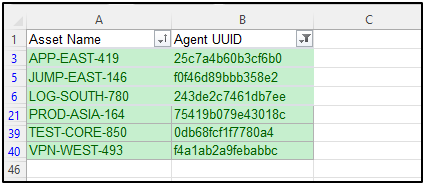
- The green entries are active agents with no event logs received during the last 14 days; these are the affected endpoints that need addressed. The endpoint name column can now be sorted by A to Z, if desired; don’t remove the color filter from Agent UUID.
Optional Notes
- Spot check a few endpoints to ensure the Excel results are accurate.
- Using the same Inventory filters for last active time and agent not disabled, enter the endpoint name as a filter and it should show up if it was active during that time frame. Click the endpoint name to open its options, then click the event search link to show it’s event logs in event search (the benefit of accessing event search this way is that it populates the agent.uuid and asset_uid automatically); there should be no logs present for the time frame selected. If 2 or 3 endpoints are confirmed with no logs then the list is probably good to go.
- The instructions further down can be used to create a csv list that may be uploaded as an inventory filter to verify all the green endpoints were active during the time frame selected.
- The instructions under that, regarding the Excel Formula, apply to creating a copy/paste filter for the Agent UUID’s and event search, which can verify that all of the endpoints on the list had no logs for the given time frame.
- If logs are present (and they shouldn’t be according to the list), then ensure that all of the steps were followed to create the list; pay close attention to how the Excel cells and columns were color coded, sorted, and filtered. Also be aware of duplicate endpoint names due to agent uninstalls/reinstalls, randomizing UUIDs, etc.
- It is possible that an endpoint was rebooted, re-installed, or upgraded, etc., and is now sending logs when it wasn’t before. The way to know that is to look at the earliest timestamp for the logs. If the earliest timestamp begins after the exports were performed then the list is likely correct and the logging issue for that device was resolved. S1 activity logs and the last reboot time of the endpoint can be used to confirm if an action was taken that may have resolved the event logging issue.
- Be aware that Event Search logs may return multiple Endpoint Names for the same Agent UUID if the name had been changed during the selected export time frame (like when someone renames pc-01 to new-pc-01; the Agent UUID doesn’t change but the Endpoint Name does). That is why I sort and filter the duplicates/cell colors using the Agent UUID; it produces the cleanest list, using the most current Endpoint Name in the Inventory, and helps prevent unnecessary rabbit trails caused by endpoint naming issues.
- Using the same Inventory filters for last active time and agent not disabled, enter the endpoint name as a filter and it should show up if it was active during that time frame. Click the endpoint name to open its options, then click the event search link to show it’s event logs in event search (the benefit of accessing event search this way is that it populates the agent.uuid and asset_uid automatically); there should be no logs present for the time frame selected. If 2 or 3 endpoints are confirmed with no logs then the list is probably good to go.
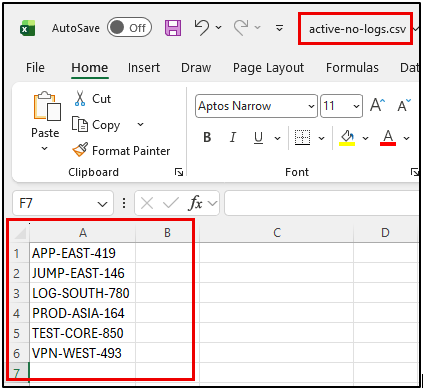
- Endpoint Names can be filtered in the S1 console using a csv, just copy out the endpoint names from the final green cells and paste them into a new csv file like the “active-no-logs.csv” shown below. That csv can be uploaded as an Inventory filter list in S1.

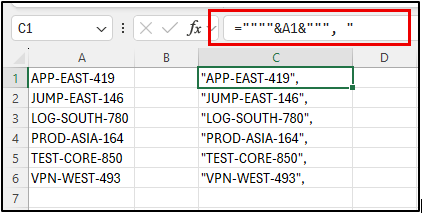
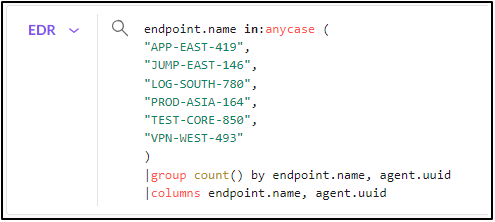
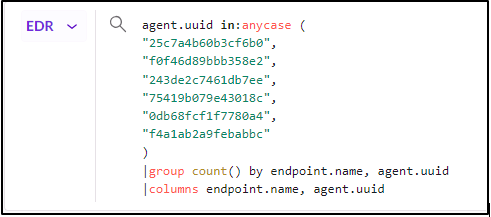
- An Excel formula can be used to wrap the endpoint name or agent uuid in “” so that they can be applied as a filter in event search.
- Excel formula below to wrap host name in “”, (see image below):
=""""&A1&""", "
- If the endpoint name is in A1 then choose a blank cell in another column like C1 and enter the above formula in the cell. Drag down the cell to have it populate all the remaining cells below it with the correct formula. (If the click and drag just repeats the same host for all cells, try holding “ctrl” while clicking and dragging.)
- Per above, if A1 says APP-EAST-419 then C1 will become “APP-EAST-419”, (note the trailing comma is part of the output).
- Note that you may not start at A1/B1 the first entry may be A33/B33, etc.
- Copy the C1 entries out of Excel using the clipboard and then paste them in the event search query per the image below; note to remove the comma from the last endpoint.name/agent.uuid entry or the query will error:
- Excel formula below to wrap host name in “”, (see image below):
- Agent UUID (agent.uuid) is better for event log searches when following up on an existing list; it removes nuances with endpoint name variances like name changes, case discrepancies not accounted for in query filters (i.e. not using anycase in the query filter “endpoint.name contains:anycase “pc01”), etc.
- Other columns can be included in the exports, but only Asset Name and Agent UUID are necessary for this task and it keeps the csv file smaller. It is better to do the initial exports and filtering with Asset Name and Agent UUID, then use a filtered list to export the full details later if needed.
- If there are a large number of endpoints, reducing the time frame or scope may make the csv exports and analysis more manageable.
- Correcting agent issues is out of scope for this guide, but resolution will likely be a restart of the endpoint or reinstall/upgrade of the agent.